

If Claude Code keeps overwriting your changes, first check whether another session, script, or build process can write to the same files. Preserve your work, identify the writer, and give each editing task a clear owner. A stronger prompt cannot prevent a separate process from saving a conflicting version.
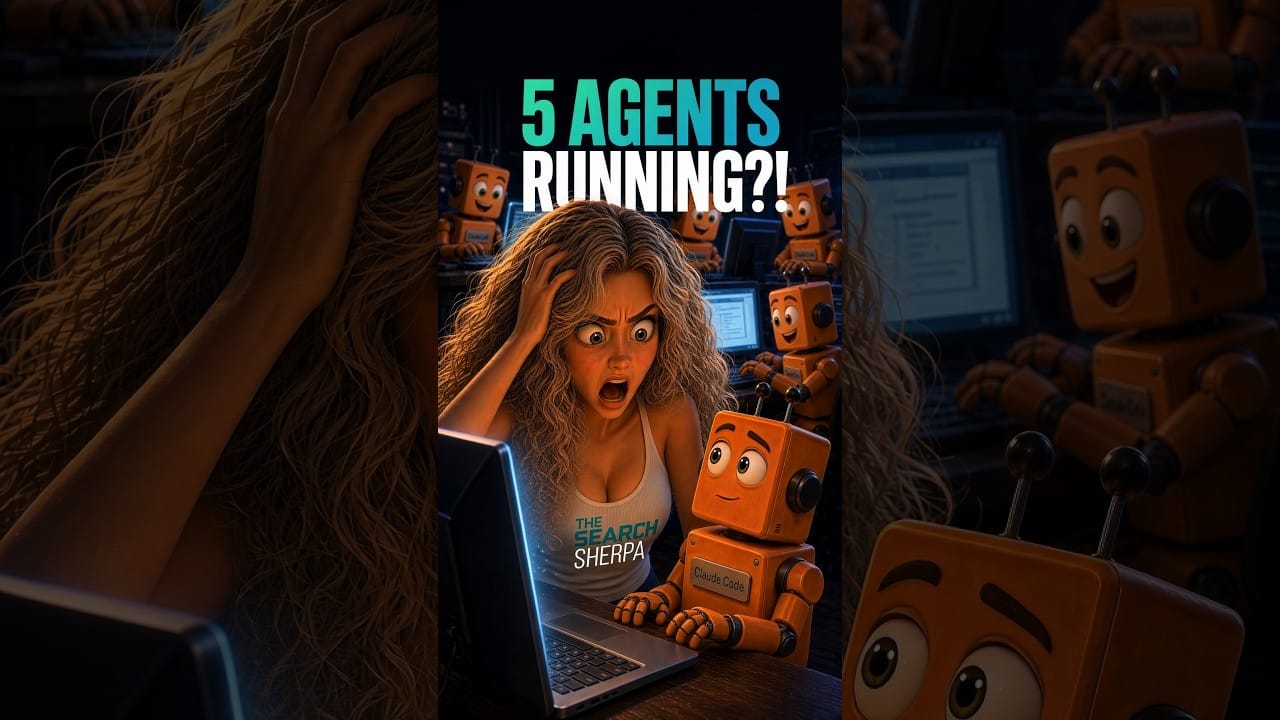
In The Search Sherpa’s animated Claude Talks episode, Alyssa changes a landing-page headline and watches it change back. Five forgotten sessions turn a small copy edit into an argument about who controls the website. The background council and its voting are fictional comedy. The useful lesson is about coordinating tools that can change the same project.
Watch the comedy: Claude Code Keeps Undoing My Edits
The featured image is an AI-generated editorial illustration of a fictional person and setting.
What can actually undo an edit
A conversation and a project folder are different things. Two conversations can have different instructions and still point at the same physical files. Each can be acting on a reasonable request while producing a result that conflicts with the other. Treat the folder as a shared workplace: separate discussions do not assign separate desks.
Consider two tasks. One says to apply approved brand copy across the site. The other says to test a new headline. If both tasks can edit the landing-page file, the first may restore the old wording after the second changes it. That is a plausible workflow conflict. It does not establish that Claude Code has a hidden background policy to reject human edits.
Several other explanations deserve equal attention. A template generator can rebuild a page from a source file. A formatter can change punctuation on save. An editor can save an older buffer. A deployment job can publish an earlier build. A browser can display cached output even while the file on disk is correct. These problems look similar from the screen, but they require different fixes.
| Observation | Check next | Reason |
|---|---|---|
| The source file changes after you save it | Other editing sessions, hooks, generators, and editor buffers | Something may be writing to that file |
| The source stays correct, but the preview looks old | Preview address, running server, generated output, and browser cache | You may be viewing another version |
| A deployment brings old wording back | Deployed branch, commit, build input, and publishing job | The live site may use a different source |
| The agent deliberately restores the old wording | Its task, project instructions, and source of approved copy | The agent may be following an outdated requirement |
The distinction matters because the visible symptom is not proof of the cause. A file changing twice is evidence of two writes, not evidence of two AI sessions. A terminal process being open is evidence that it exists, not evidence that it edited the headline. Build the explanation from observed changes and activity records.
How to investigate without losing work
1. Preserve the version you want
Before asking any tool to repair the project, save a separate copy of the affected file and note the exact intended change. Preserve unsaved editor text as well. If several files changed, capture the current working state using your team’s normal backup process. A Git diff is useful for tracked edits, but it is not a full backup of untracked files, ignored assets, or database content.
Write down the file path, the time you observed the reversal, and the text before and after. For a website, also record the preview or live URL. This turns a vague complaint into a reproducible event. It also gives the next operator a way to check whether the fix worked.
2. Inventory the exact checkout
Identify the repository, working directory, branch, and current commit in every relevant terminal or editor. Two folders with similar names can be different checkouts. Two applications can open the same checkout through different shortcuts. Check the resolved location rather than relying on the terminal tab’s title.
These read-only Git commands help establish the current location and changes. Replace the example path with the intended repository:
git -C "/path/to/project" rev-parse --show-toplevel
git -C "/path/to/project" status --short --branch
git -C "/path/to/project" diff -- path/to/landing-page.html
git -C "/path/to/project" diff --cached -- path/to/landing-page.html
git -C "/path/to/project" worktree list
The ordinary diff shows unstaged tracked edits. The cached diff shows staged edits. Neither command identifies the operating-system process responsible for a write. Use them to establish what changed, then compare that with session activity, editor history, and build logs.
3. Find and pause the relevant writers
Review the sessions you started, their current tasks, and any scripts they launched. Check terminal windows, editor integrations, development servers, scheduled jobs, and deployment tools. Do this with the project owner if the machine or repository is shared. An unrelated process should not be stopped simply because its name includes Claude, Node, or Python.
Ask each relevant session to report its working directory, assigned files, current task, and background work. Cross-check those answers against its visible activity. A session may accurately describe its own actions while knowing nothing about another terminal. Do not assume the conversation you are using can automatically account for every process on the computer.
4. Test one explanation at a time
Once the suspected writer is paused, make a small local change and watch the source file. Then check the preview separately. If the source stays correct but the browser does not, investigate the display and build path. If the source changes again, another writer or generator remains active. Keep this test local or on staging so an investigation does not repeatedly change customer-facing copy.
How to recover the intended version
Recovery should begin after you control the writers. Otherwise, a restored file may immediately be overwritten again. Compare your preserved copy, the current file, the staged changes, and the last accepted version. Restore only the intended parts. A broad project reset can erase useful work that has nothing to do with the headline.
Claude Code’s checkpointing documentation describes /rewind for session-level recovery and explains its limits around external changes and shell commands. Check the selected checkpoint and proposed restore scope before applying it. Checkpoints complement version control; they are not a complete backup of everything another tool may have changed.
After recovery, inspect the diff again. Confirm that the headline is correct, unrelated edits remain intact, and generated output reflects the accepted source. For a landing page, test its main contact action too. Restoring visible words is only one part of confirming that the page still works.
If the desired wording never reached disk, Git may have nothing to recover. An editor’s local history, a saved patch, or a separate text copy may be the available evidence. Avoid promising that a rewind command can recover any edit from any application.
Branches, sessions, and worktree isolation
A new chat gives you a new conversation. A Git branch identifies a line of development. Neither statement, by itself, tells you whether two processes are editing different files on disk. When two terminals use one checkout, switching its branch changes the working tree that both terminals are using. Naming each conversation after a branch does not create another working directory.
A Git worktree provides a separate checkout while sharing repository history. The Git worktree reference explains that structure. For genuinely independent concurrent editing tasks, separate directories make the ownership boundary visible and reduce direct file collisions.
Claude Code supports starting an isolated session with claude --worktree task-name. Its worktree documentation covers setup, reuse, and cleanup. Verify the created directory before editing. When resuming the same task, inspect and reuse its recorded checkout instead of creating a second competing writer.
File isolation has limits. Two worktrees can still use the same WordPress credentials, external database, cloud bucket, publishing target, or development port. A separate source folder does not provide a separate production website. Assign ownership for those shared resources explicitly, and use separate staging resources where the work requires them.
Isolation also moves some conflict resolution to integration. Two branches can independently change the same headline without overwriting one another immediately. Someone still needs to decide which change belongs in the final version. A merge tool can identify overlapping lines, but it cannot decide which marketing promise the business approved.
A practical ownership system for AI coding work
For each active task, record one owner, the exact checkout, the permitted files, and the acceptance criteria. A simple task record is often enough. Its value comes from keeping it current and making every editor consult it before writing.
Task: Update the landing-page headline
Owner: Session Alpha, supervised by the website owner
Checkout: /work/projects/landing-page-copy
Branch: landing-page-copy
Allowed files: landing-page source and its copy fixture
Accepted headline: Ship Faster with AI
Shared systems: No live publishing during this task
Done when: Diff reviewed, preview checked, contact form tested
Handoff: Stop editing before another session takes ownership
Separate review from implementation when possible. A second session can inspect a diff and return findings while the first remains the only writer. If the reviewer needs to make changes, transfer ownership deliberately or give it a separate task and checkout. Permission to review should not silently become permission to rewrite.
Use project instructions to record stable constraints. Claude Code documents project instructions and memory, including CLAUDE.md. Keep approved copy and editing boundaries clear and current. Treat those instructions as guidance to the agent, not as an operating-system lock preventing another application from saving a file.
Also inspect automation around the edit. Claude Code’s hooks reference documents commands that run at lifecycle events. A project hook or generator can affect files without resembling an ordinary assistant edit. Review what the configured automation does before disabling it or blaming the model.
A landing-page example: two valid tasks, one conflict
Imagine a business owner approves a new headline for a campaign. Session Alpha receives the copy task. Session Bravo is already updating old brand language across the repository. Both tasks include the same landing-page file, but Bravo’s instructions still list the previous headline as approved.
Alpha changes the text. Bravo later reads the page and restores the old phrase. The owner asks Alpha to fix it again. Alpha complies. Both sessions can report that they followed their assigned instructions. The mistake is allowing two different definitions of approved copy to govern the same file.
The repair has four parts: pause Bravo’s work on that file, preserve both sets of useful edits, update the approved-copy source, and assign Alpha the final headline change. Then review the combined diff. Simply telling Alpha to be more careful leaves Bravo’s old assignment intact.
If the tasks need to continue concurrently, give them separate checkouts and explicit integration ownership. Bravo can prepare its broader copy cleanup while excluding the campaign decision. Alpha can prepare the approved campaign change. A human reviewer then combines the accepted work and checks the final page.
Now change the scenario: neither session edited the file after Alpha saved it, but the live page still displays the old text. The next investigation belongs in the publishing chain. Check which branch was deployed, whether the build used the expected source, and whether the displayed page is cached. The same symptom can have a different cause.
How to hand work between sessions
A useful handoff records what exists on disk, what the owner approved, and what remains unfinished. Include the checkout path, branch, current commit, changed files, untracked assets, validation results, and any running commands. Note whether the work has been published anywhere. A conversation summary without those details can send the next session to the wrong folder.
The outgoing writer should stop before the incoming writer edits the same checkout. The incoming writer should verify the recorded state rather than assuming the summary is current. If files differ, reconcile that difference before continuing. This is particularly useful when moving from a terminal to an editor integration or between computers.
End completed tasks just as deliberately. Stop task-specific background work that is no longer needed, record the accepted version, and leave a recovery pointer. Inspect untracked and ignored files before removing a checkout. A clean Git status does not prove that a folder contains nothing valuable or that no running service still depends on it.
What business owners should require from an AI website workflow
You do not need to manage every terminal to ask useful questions. Your website provider should be able to identify the accepted source, the person responsible for changes, the review environment, and the path back if something breaks. Those answers should be concrete enough that another qualified person could take over.
Ask to see the specific change before publication. For a headline update, that means the before-and-after copy, the affected page, the preview, and confirmation that contact actions still work. For a larger build, it also means a clear account of dependencies, forms, tracking, and deployment. More simultaneous agents do not reduce the need for that review.
Our Claude Code guide for small businesses explains the broader tool stack. If you need implementation help, our website design and WordPress optimization work connects page structure with the needs of customers. Our local SEO services address how those pages fit the business’s visibility system.
Jeremy Bengtson, Founder of The Search Sherpa in Mokena, Illinois, uses these explainers to make technical decisions easier to assess. AI can assist with implementation, but we do not promise rankings, lead counts, map placements, or appearances in AI answers. The practical standard is accountable work that can be reviewed and maintained.
Discuss your website and visibility system with Jeremy Bengtson. No pressure and no contract. No contracts. Clients stay because the work earns it.
Common questions
Does Claude Code automatically vote against my changes?
The council and voting in the episode are fictional. A real investigation should look for an actual writer, conflicting instructions, generated files, or a mismatch between source and preview. Do not use the scene as evidence of an undocumented Claude Code feature.
Is an open session always editing in the background?
An open session alone does not establish that work is running. Check its active task and any processes it launched. A process can also continue outside the conversation, depending on how it was started. Identify the specific activity before deciding what to pause.
Will creating a new branch stop the overwrites?
A branch alone does not separate two processes using the same working directory. Use a separate checkout for an independent concurrent editing task, or coordinate a single writer in the existing checkout. Confirm external publishing and database access separately.
Should I close every AI session?
Identify which sessions and processes own the affected work first. Pause the relevant writer through its normal controls, preserve unfinished changes, and verify that writes stop. Closing unrelated sessions can interrupt useful work while leaving the actual generator or deployment job running.
Can I solve this by adding a rule that says never overwrite my edits?
That rule can clarify intent, but it does not create file isolation or update another session’s assignment. Pair clear instructions with task ownership, accurate source documents, separate checkouts where needed, and a reviewed integration step.
Technical references checked October 24, 2026. Commands and recovery options can vary by installed version. The diagnostic workflow and examples here are operational guidance; the animated story is fictional.
Explore This Topic
Claude Code Overwriting Changes: How to Manage Conflicting Sessions
Watch: Claude Code Keeps Undoing My Edits
SEO for Property Management (2026): How Managers Get Found by Owners

SEO for Insurance Agencies (2026): How Local Agents Get Found

Hiring an AI Website Developer: What YouTube Videos Cannot Prove
Join Over 400,000 Entrepreneurs Getting Our Weekly Newsletter
Recent Posts
October 24, 2026
Alyssa changes a headline. Five forgotten Claude Code sessions have other plans. Watch Ghost in the Shells, an animated comedy about conflicting AI
October 12, 2026
A YouTube demo shows only part of a provider’s work. Learn what to verify about AI review, access, backups, testing, ownership, and support
October 12, 2026
Watch a 129-second AI Dialogue about coding permissions, approval fatigue, and the risk of giving an AI agent control you cannot evaluate.